|
DOSBox-x
|
|
If your computer is running a 64 bit version of Windows XP, Vista, 7, 8, 10, or 11 this POS program will not automatically run on your computer. However by installing DOSBox-x (another FREE program) you will not only be able to run my Cash Register program but also many other 16 and 32 bit programs that your computer currently cannot. Also for those folks that absolutely, positively require that my Cash Register program must run in FULL SCREEN (instead of a large window) DOSBox-x will also do that on 32 bit computers that have a problem with running my program full screen. First you must properly download the Cash Register program using these instructions upgrade.htm Since DOS software will not run on your computer you will have to run a 64 bit program on your computer that will run DOS software. This program is called DOSBox-x and can be obtained for free. NOTE: When you install DOSBox-x it will ask you to choose from many, many, many options, DOSBox.x apparently has the ability to reach other dimentions. However I just want to get DOSBox-x to run the POS program so I am concentrating on just that. When I installed DOSBox-x I just selected either the default option or the top option and everything came out just fine. But if later you wish to use different options then when actually running DOSBox.x you can reset them using pull down menus. Here is the link to download DOSBox-x http://www.dosbox-x.com. You will find instructions there on how to download the program and start it up. I will wait here until you do so. I made a C:\DOSBox-x folder and installed DOSBox-x in it. If you did also, use "This PC" to navigate there (or wherever you installed DOSBox-x.) To start the program double click on the DOSBox-x.exe file to start DOSBox-x or you can right-click on it to display a menu with the option to create a shortcut on your DeskTop. When you start DOSBox-x you will see the top screen below...
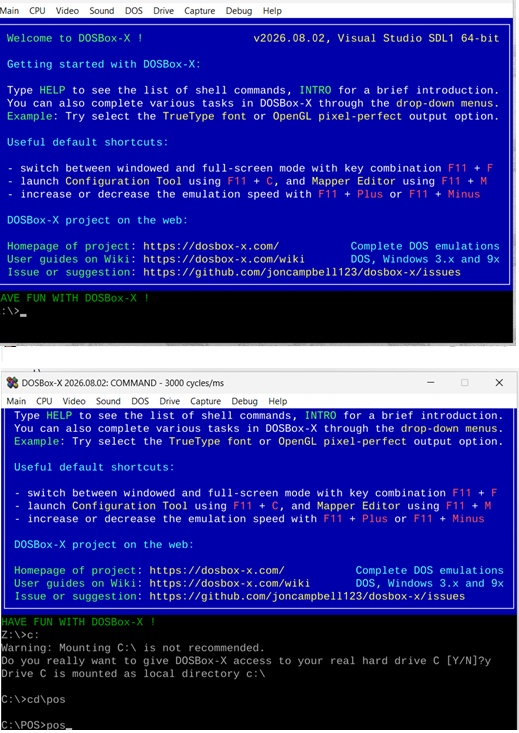 As in the bottom screen type C: [ENTER] and the program will ask you the question shown, answer Y [ENTER] Now type "cd" followed by the folder holding the POS program - cd\pos [ENTER] And when you type POS [ENTER] the POS program will run. NOTE: After you have done the above and run the POS program, then when you start DOSBox-x again you can press [F11] + [Q] and you will be taken to a list of all the .EXE files in the folder containing the POS program. You can then scroll down to the pos.exe program file and click on it to start the POS program. Note: By pressing [F11] + [F] you can toggle between the program being displayed in full screen or a window. WARNING: In some instances pressing [F11] when on the first couple of screens the program will die. If this happens wait until later screens to press [F11] + [F]. AUTOSTART The following may seem complicated however you only have to do it once. Well all of the above is fine but you probably would rather get the POS program to start just by clicking on the DOSBox-x icon. At the top of the DOSBox-x screen click on [Main] (or press [F11] + [C]) and you will get the "Main menu" If you clicked on [Main] now click on Configuration tool. You should now see the middle screen below. Click [AUTOEXEC.BAT] to get to the bottom screen.
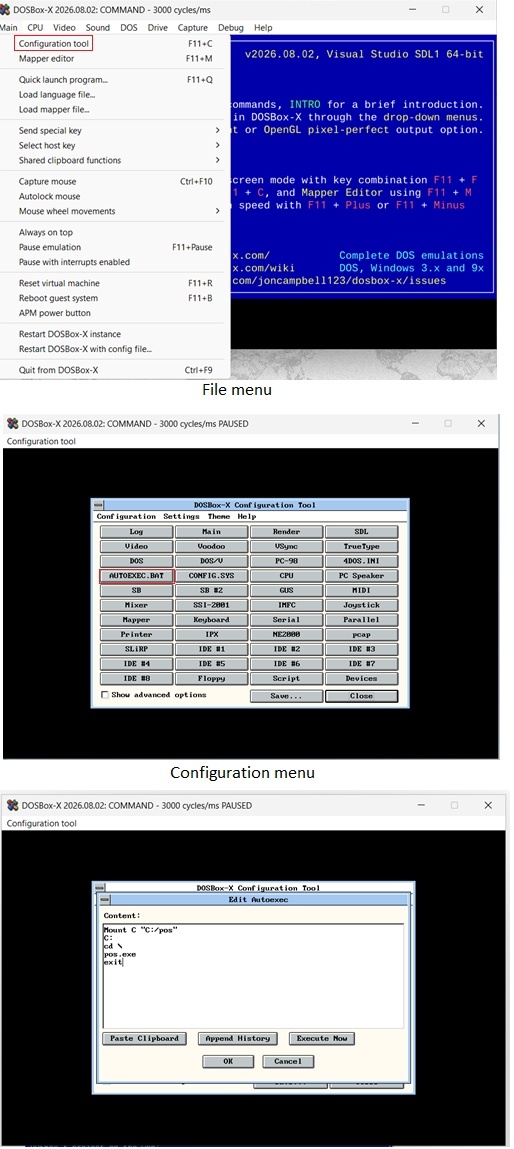 Remembering to use YOUR folder for where you have stored your copy of the POS program type the text shown in the bottom screen.
Mount C "C:\pos" Now click [OK] BE AWARE! Punctuation counts!!! You will be returned to the middle screen. Click [Save...] and you will see this...
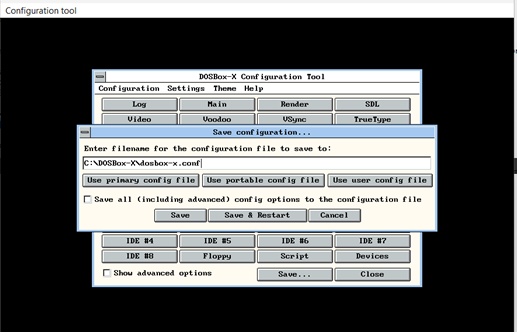 Click [Save] to save the configuration and to clear this and return to the configuration menu then click [ESC] to return to the main start-up screen Exit DOSBox-x and when you then click on the DOSBox-x icon then DOSBox-x will automatically also load the POS program. RUNNING MULTIPLE PROGRAMS This is even more complicated but again you only have to do it once. What if you want to run other programs (like DOS games) besides the POS program? and you would like to be able to select the program you want from a menu. To do that you must install another program. While there are several, I have chosen DBGL and the following instructions are for that program. NOTE: DOSSHELL will not work with DOSBox-x. IMPORTANT!!! If you followed the instructions above to use AUTOEXEC.BAT to load a single program when you start DOSBox-x then DBGL will not work. You must go back to AUTOEXEC.BAT and erase everything and save it before you can use DBGL. Here is the link to the DBGL home page. At the top of their home page click on the link [Download] and you will scroll down to the "Download" section of the page. You will also have to download Java and the option I selected was "Oracle Java SE Development Kit 17 or newer" Now click on the dbgl099.zip tag to download the program to your download folder. Now open that folder to display the dbgl099.zip file and double click on it to install it on your computer. Use "This PC" to navigate to the folder holding the DBGL program, find the launch.exe file and double click on it to start the DGBL program. Or you can also right click on the launch.exe file to see a menu that will allow you to place an icon on your desktop. When you start the DBGL program you will see the top window below. The first thing you must do is to change the DOSBox version from DOSBox to DOSBox-x. On the screens below follow the instructions below the screen.
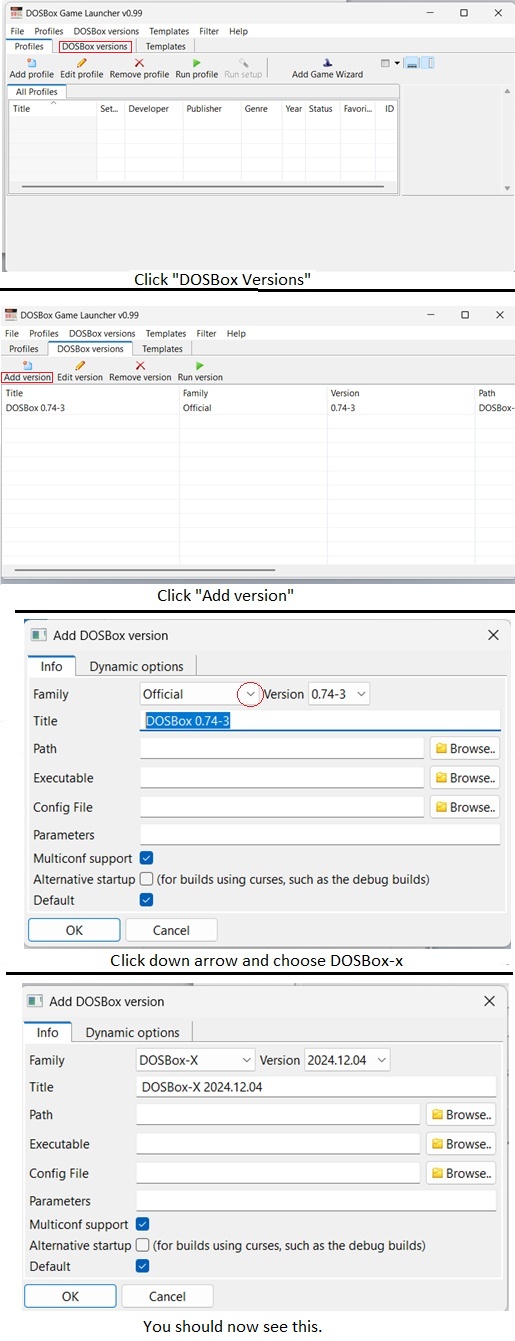 The next thing to is to find the PATH to the DOSBox-x folder, the Executable file for DOSBox-X (dosbox-x.exe), and the Config file. Using the [Browse] tab for each find parameter and click on it to load it into the program. If all is correct you should return to the next screen when you click on [OK]. 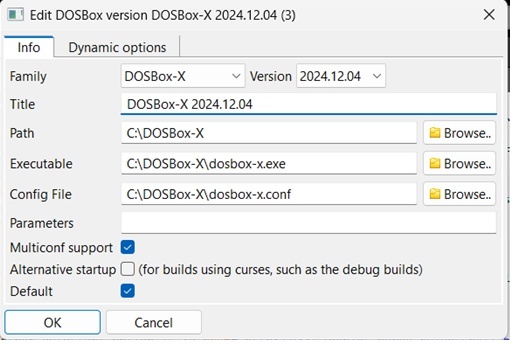 Click on [OK] to return to the main "Versions" screen. Now it is time to actually add a specific program to DBGL. On the following screens do the following....
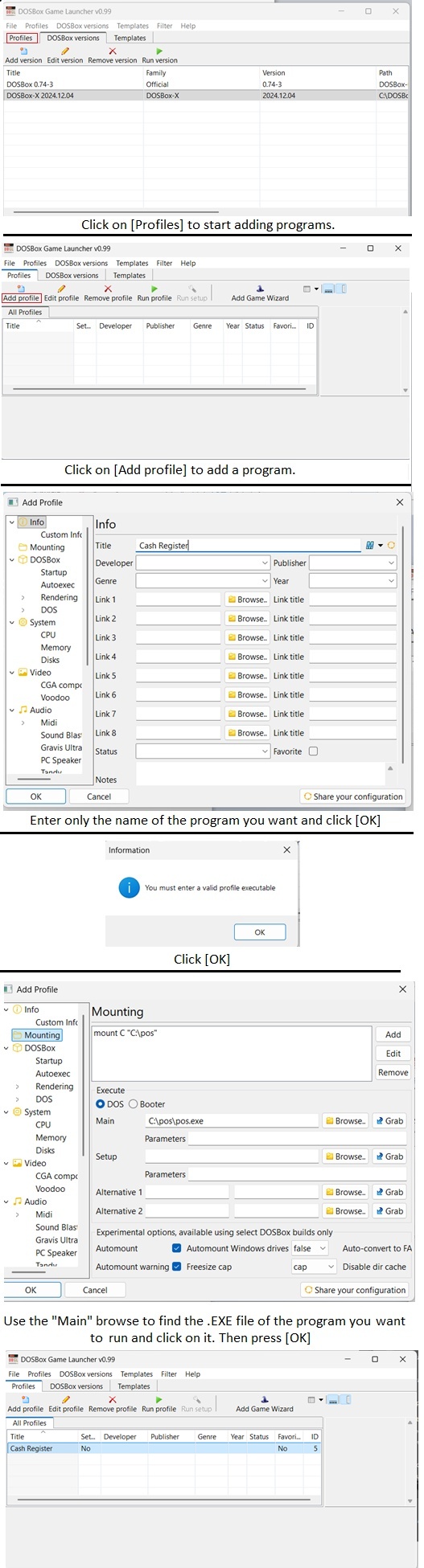 You now have a program in DBGL and when you start DBGL this is the window you will see. To start a program just double click on it. By clicking [Add profile] again you can enter more programs.
PRINTING
If you are using a parallel port printer and you do not have the printer driver for that printer you will have to install the "Generic" driver from Windows.
From the Windows [Start] button go to [Settings] then [Control panel]. Click on the [Printers & Faxes] icon. When the window opens from the menu bar click on [File] then [Add printer].
Follow the prompts until a list of Manufacturers and Printers appears. Select the "Generic" manufacturer and the "Generic / Text only" printer. Click [Next] and follow the prompts
until the driver is installed. NOTE: There are problems with using the generic printer driver. See Generic printer driver problems.
AFTER you have installed either the printer's driver or the generic driver then start the APRINT6 program. Select the proper driver and font size which you only have to do the first
time you start APRINT. Remember that APRINT6 must always be started before the Cash Register program and be left running while the Cash Register is running.
CASH DRAWERS
However SERIAL CASH DRAWERS WILL NOT FUNCTION.
SCANNERS
However SERIAL SCANNERS WILL NOT FUNCTION.
POLE DISPLAYS
A better and cheaper option for a pole display is here.
NETWORKS |